We have made significant improvements to Case Linking within Case Manager with a more streamlined interface. Designed to save you time and keep you in your workflow, the new UI allows you to search for, verify, and link cases without ever leaving your current screen.
This article covers the differences between the old and new screens and provides a step-by-step guide on how to use the new feature.
What’s Changed?
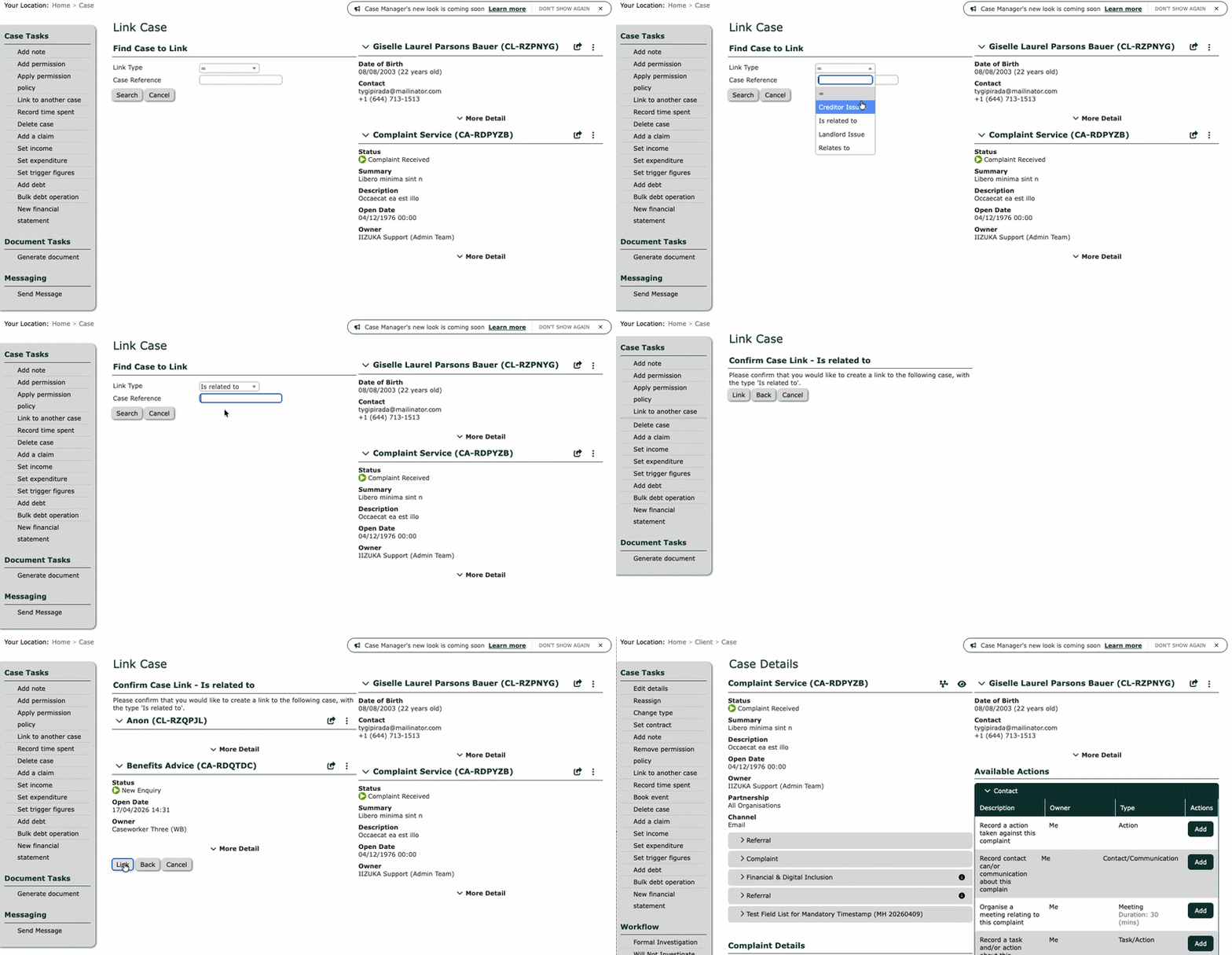
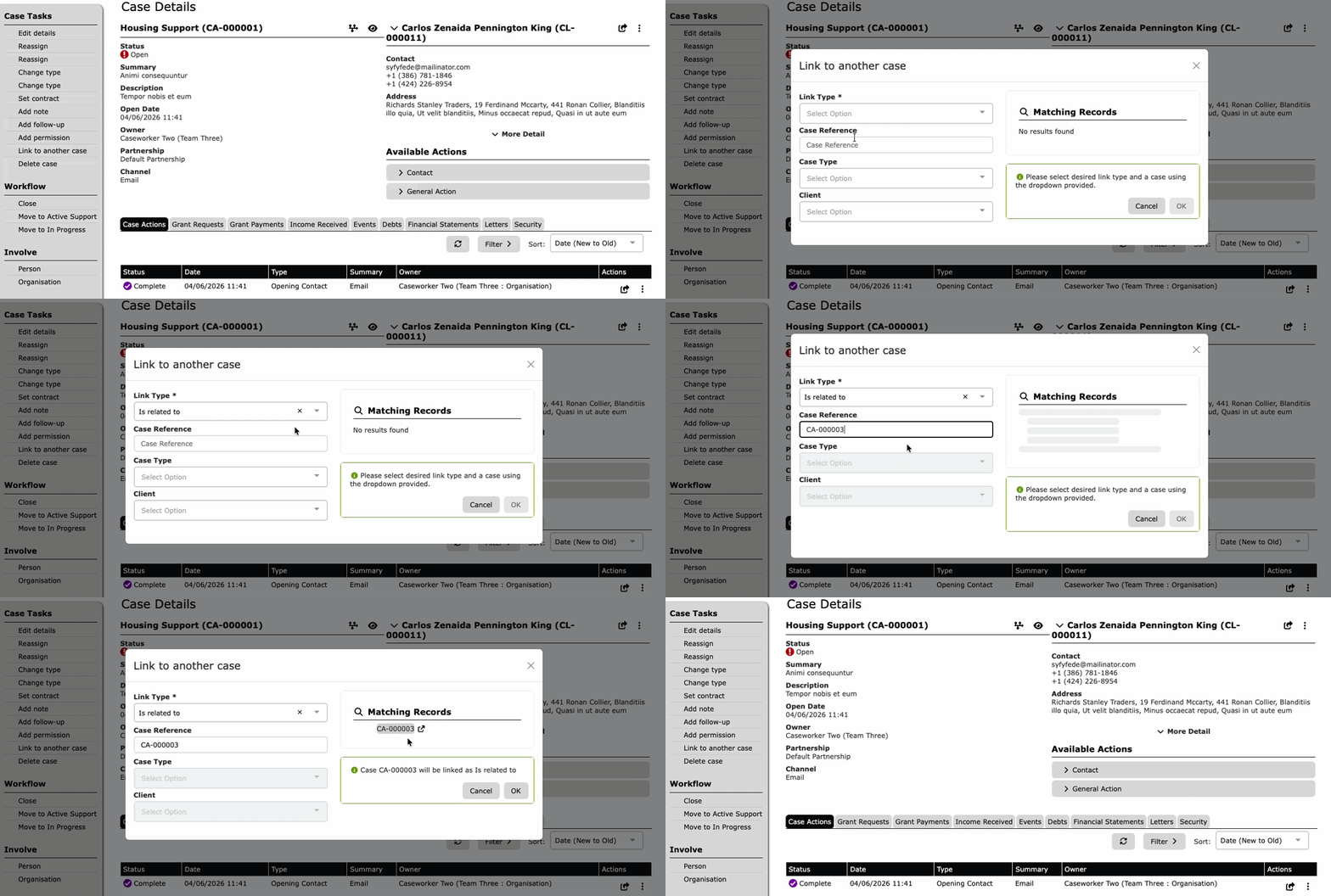
Instead of navigating away to a brand-new screen and waiting for pages to refresh, the entire linking process now takes place inside a fast, dynamic pop-out window. Here is a comparison of the old and new interface.
Old Interface:
- Redirected you to a new page.
- Required multiple screen loads.
- Loaded details on a separate screen.
New Interface:
- Keeps you on your current page via a pop-out window.
- Zero page refreshes.
- Preview details directly inside the window.
Step-by-Step: How to Link a Case (New UI)
Follow these simple steps to link a case using the upgraded interface:
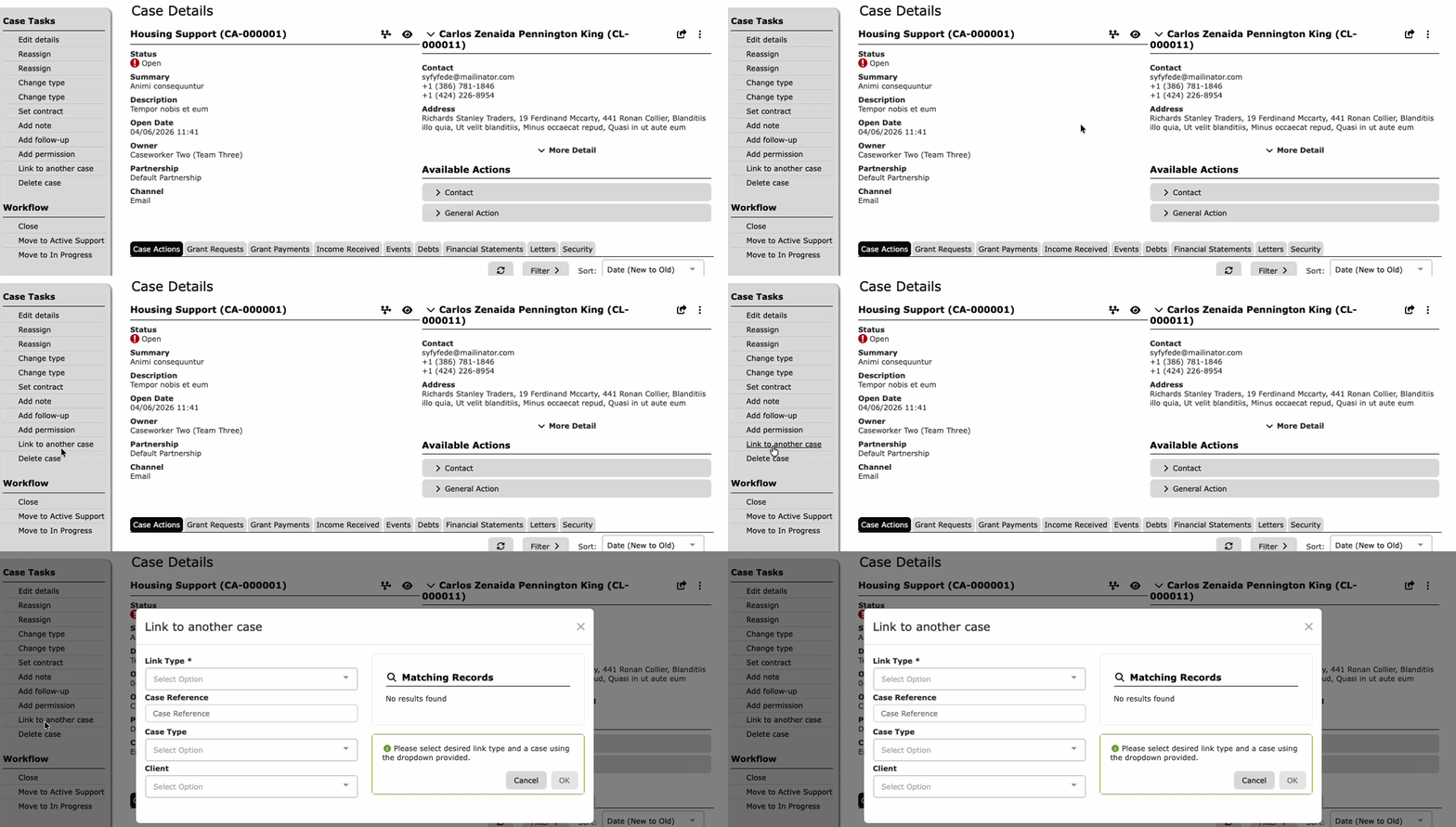
Step 1: Open the Link Window
Click the "Link to another case" button in your left-hand menu on the case screen. A new pop-out window will appear instantly over your workspace.
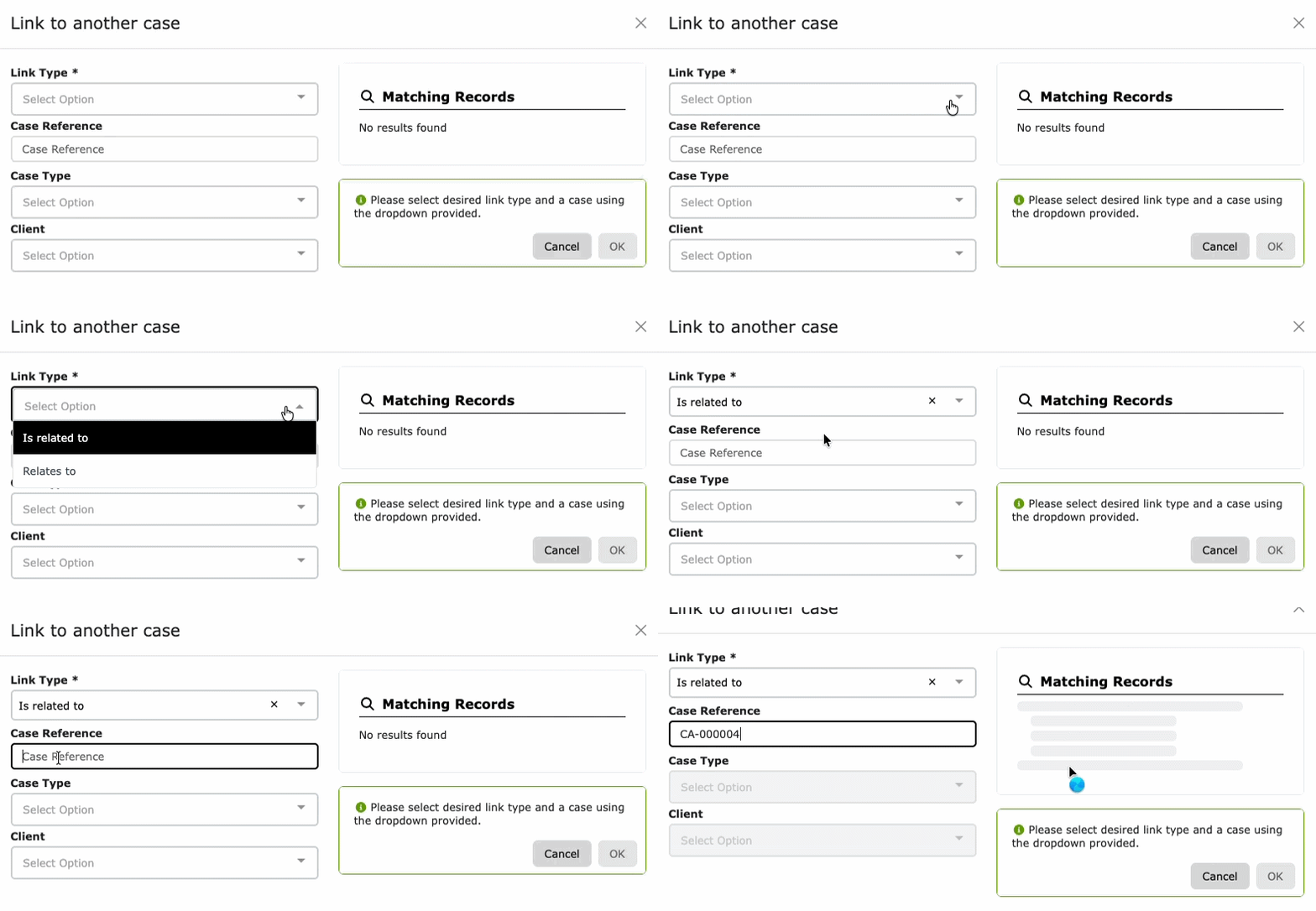
Step 2: Enter Case Details
- Select your Link Type from the dropdown menu.
- Paste or type your Case Reference into the input field.
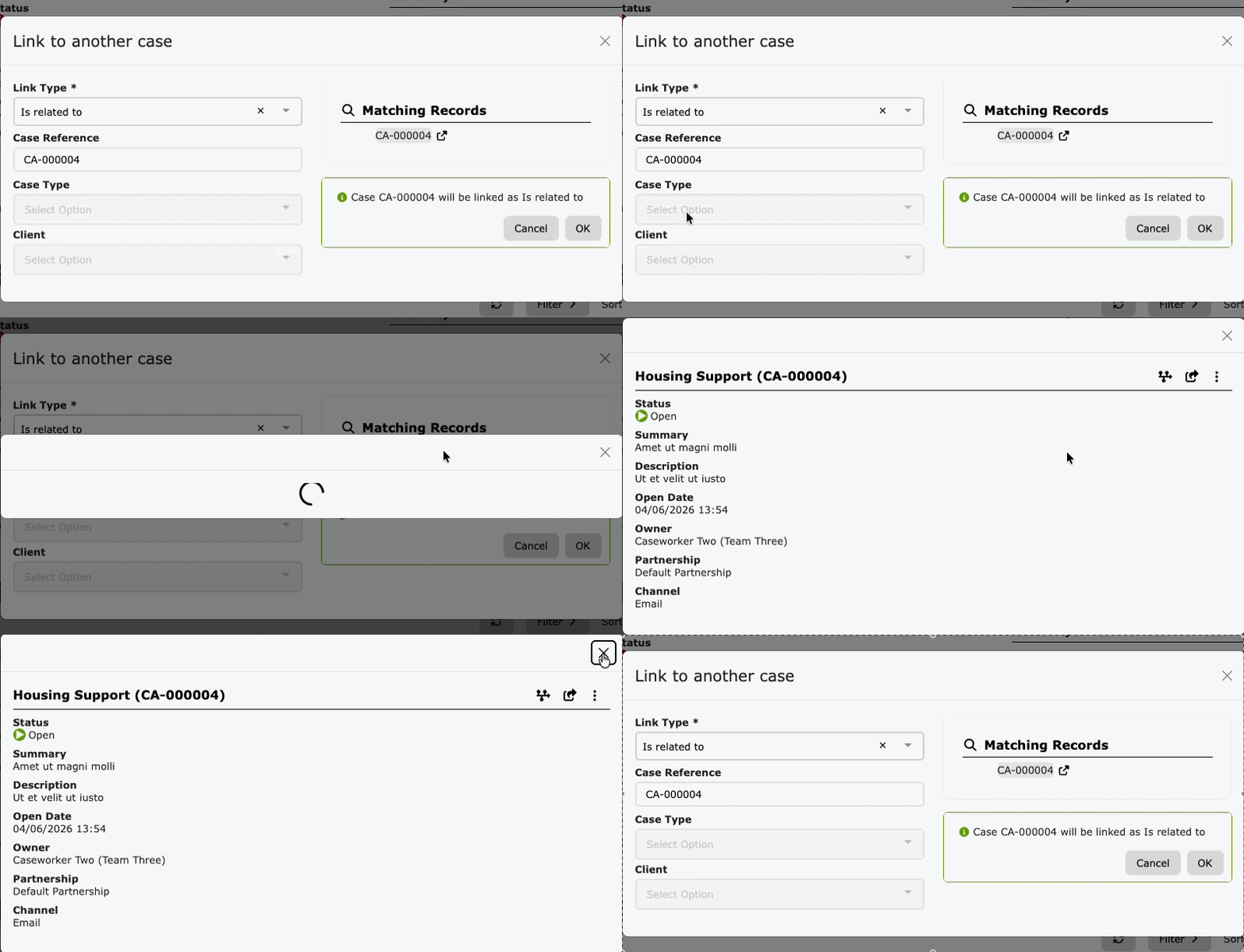
Step 3: Preview and Verify
As soon as you enter the case reference, matching records will dynamically appear within the window.
- To see full details: Click the Arrow button next to the matching record to expand and view the client and case details to ensure it's the correct match.
Step 4: Complete the Link
Once you have verified the correct case, simply click "OK".
💡 Success! The cases are now linked instantly. You will notice that your main screen never had to reload, allowing you to jump right back into your work.
Need Help?
If you encounter any issues or have questions about this updated UI, please reach out to our support team via the Help Desk over at support@iizuk.co.uk.
Ricky Astle
Comments