If you encounter an error, a blank screen, or any unexpected behavior while using Case Manager, our support team can help solve your issue much faster if they can see what is happening within your browser.
This guide will show you how to open the Developer Tools (F12) and help capture the error details to send to our support desk.
Step 1: Open Developer Tools
When you encounter the issue in Case Manager, open the developer tools using one of these quick methods:
- The Shortcut: Press the F12 key on your keyboard. (On some laptops, you may need to press Fn + F12).
- The Mouse Method: Right-click anywhere on the Case Manager page and select Inspect or Inspect Element.
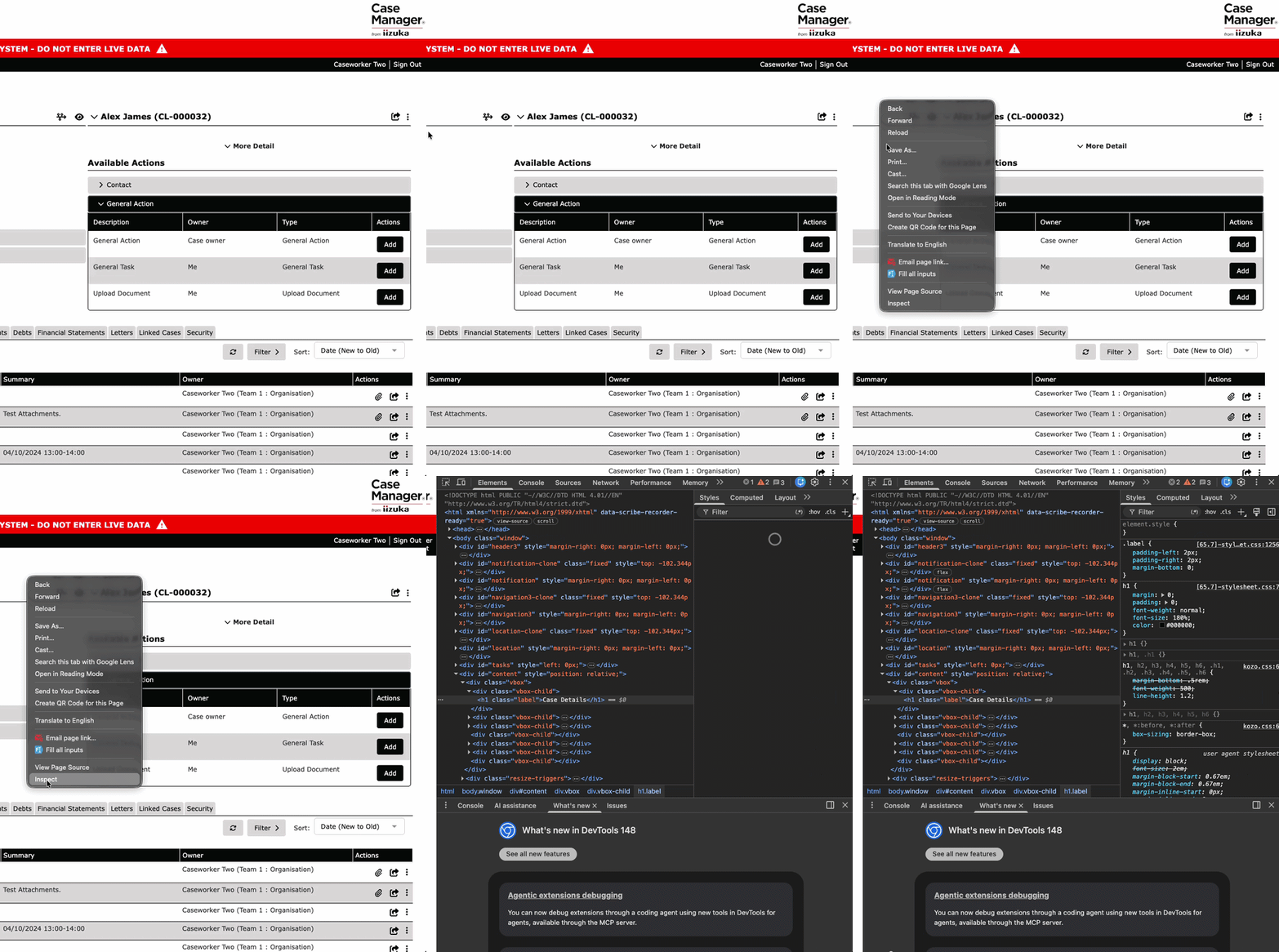
💡 A panel filled with code and tabs will open on the right side or the bottom of your screen. Don't worry—you don't need to understand what it says!
Step 2: Capture the "Console" Log (For Application Errors)
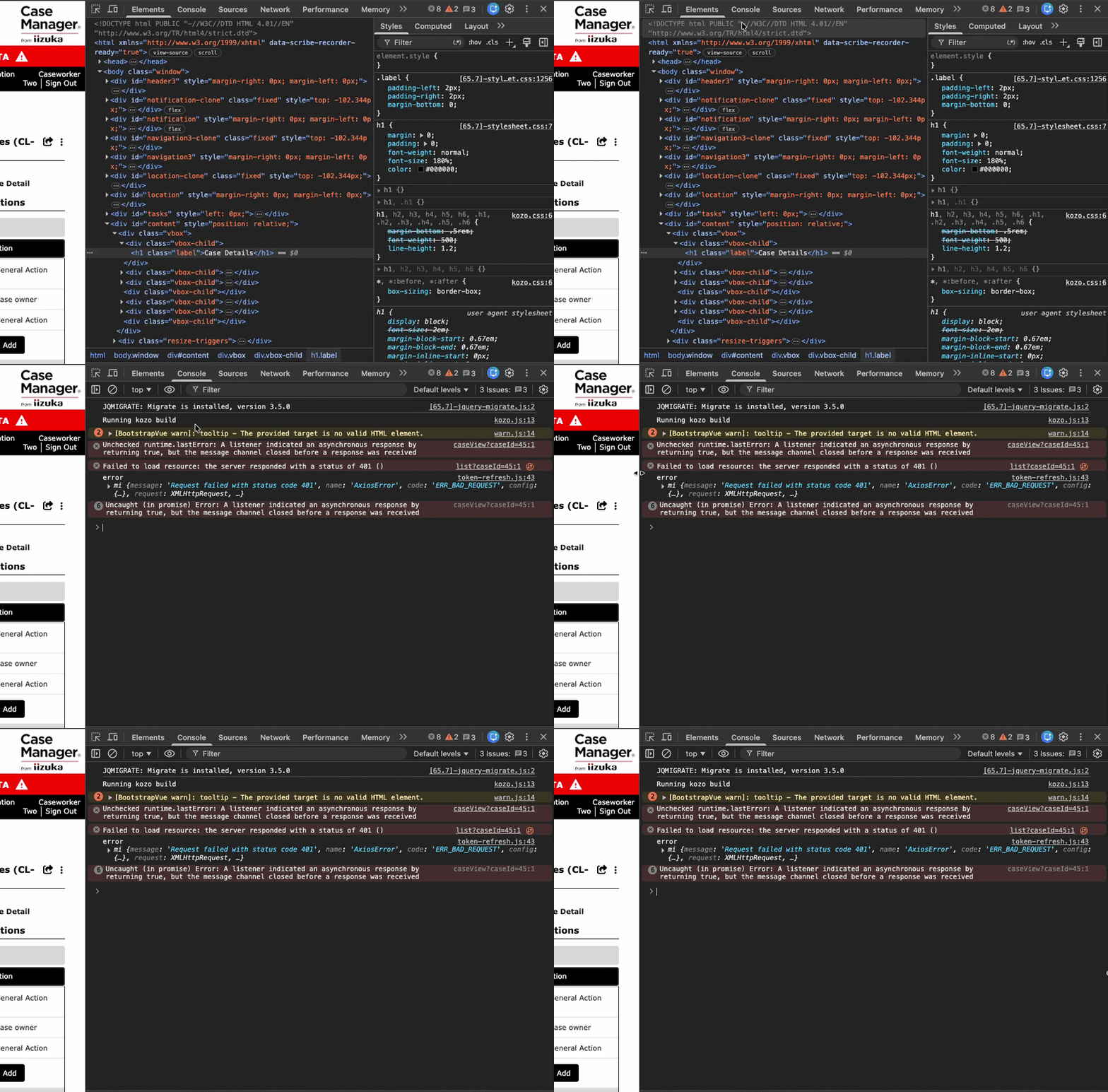
The Console tab records any underlying errors or broken code errors that are causing Case Manager to misbehave.
- Click on the Console tab at the top of the developer panel.
- Look for text highlighted in Red (these are errors).
-
How to send it to us:
- Take a screenshot: Ensure the red error text is clearly visible.
- Or, Save the log: Right-click anywhere inside the Console panel, select Save as..., and save the
.logfile to your computer.
Step 3: Capture the "Network" Log (For Loading/Connection Issues)
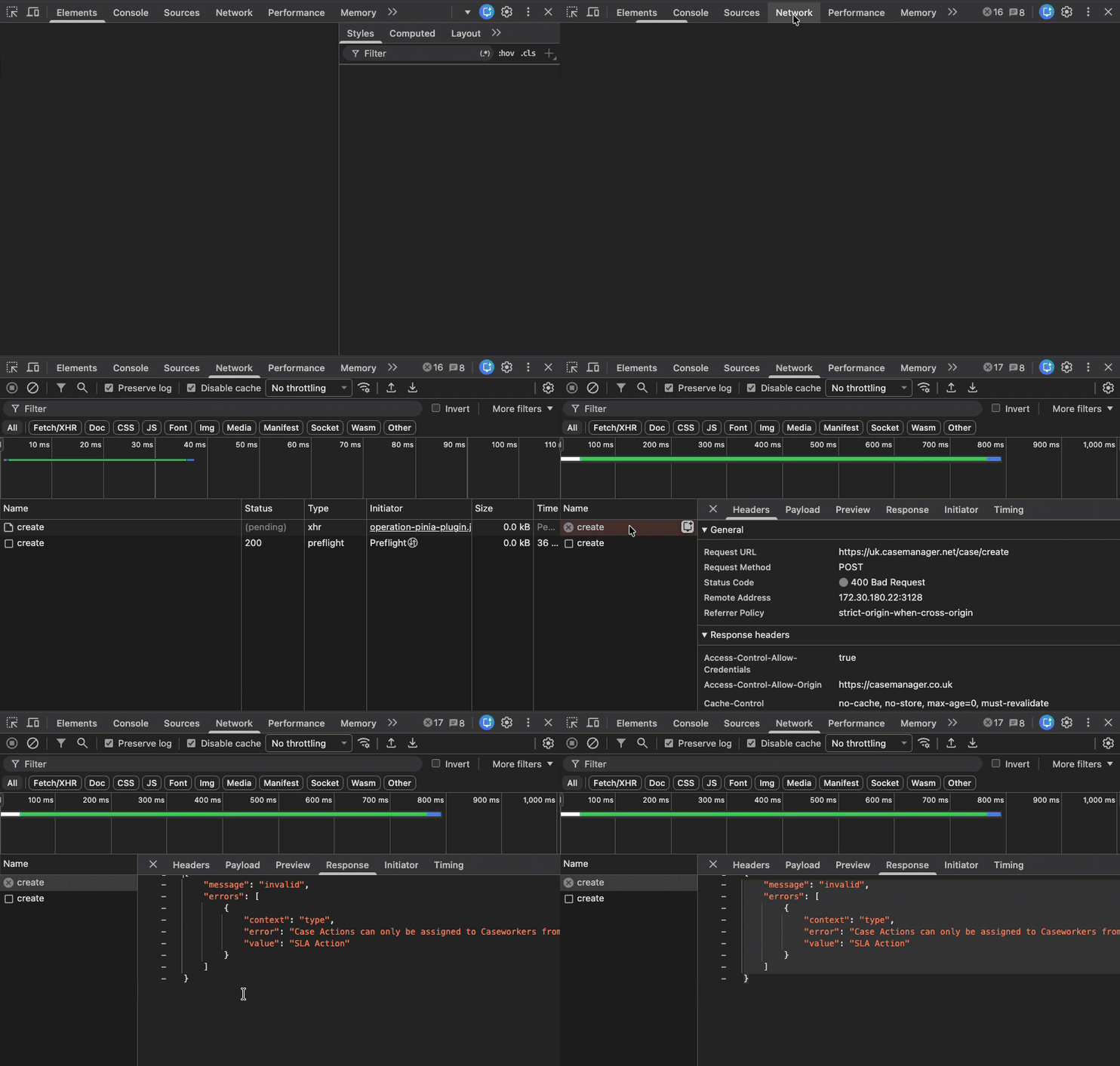
If Case Manager is loading indefinitely, spinning, or throwing "Unexpected Error" messages, the Network tab will show us exactly which connection is failing.
- Click on the Network tab at the top of the developer panel.
- Refresh your page (Press F5 or click the browser's reload button) and recreate the error/issue you were experiencing.
Look for rows highlighted in Red or showing status codes like404or500. Click into the row and select the Response tab.
-
How to send it to us:
- Save this to your computer as a screenshot or screen recording.
Step 4: What to Submit to Support
To help us fix your issue immediately, please create a ticket by reaching out to us at support@iizuk.co.uk and attach:
- A brief description of what you were doing right before the issue occurred.
- The Console Screenshot/Log (from Step 2).
- The Network Error Screenshot (from Step 3).
Privacy and Security
Any information or screenshots you send can occasionally capture data currently visible on your screen. Before saving your files, please ensure you do not have highly sensitive personal information or passwords visible in Case Manager. If you do, blur or crop the screenshot before sending.
Ricky Astle
Comments